Selloff Easy

Selloff Easy

Selloff Easy – Inventory, Billing & Accounting Management System

A Comprehensive Business Solution by K-IT Services

Selloff Easy, a flagship product of K-IT Services, is an all-in-one business management application designed to handle sales, purchases, inventory, billing, and financial accounting with precision and efficiency.

Whether you are a small business or a growing enterprise, Selloff Easy helps you gain complete control over your operations through a single, integrated platform.

What Makes Selloff Easy Powerful?

Why Choose Selloff Easy?

Selloff Easy simplifies complex business processes by providing:

  • Seamless management of inventory and stock levels
  • Efficient billing and invoicing system
  • Accurate tracking of sales and purchases
  • Integrated financial accounting modules
  • User-friendly interface for easy adoption

Key Benefits

Core Features

Selloff Easy simplifies business operations with powerful tools including:

  • Inventory Management: Real-time stock tracking and alerts
  • Billing & Invoicing: Fast, accurate, and customizable billing
  • Purchase & Sales Management: Streamlined order processing
  • Accounting Integration: Manage finances with clarity and control
  • Comprehensive Reporting: Generate insightful business reports

Selloff Easy is a comprehensive business management application designed to manage sales, purchases, inventory, and financial accounting efficiently. This document provides an overview of the major screens and modules available in the system.

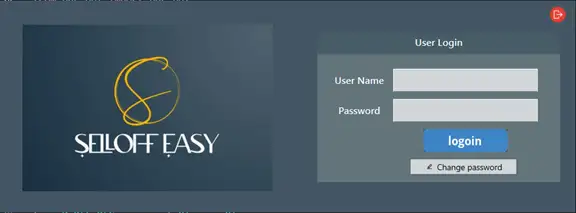
User Login Screen

  • This screen allows users to securely log in to the Selloff Easy application.
  • It includes fields for Username and Password along with a Login
  • A Change Password option allows users to update their login credentials and maintain account security.

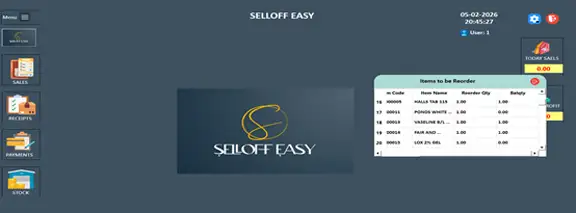
Dashboard Screen

  • The Dashboard is the main screen of the Selloff Easy
  • It provides quick access to modules such as Sales, Receipts, Payments, and Stock.
  • The screen displays today’s sales, profit, current date and time, and items that need to be reordered.

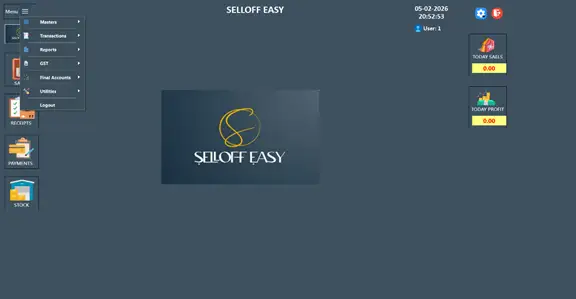
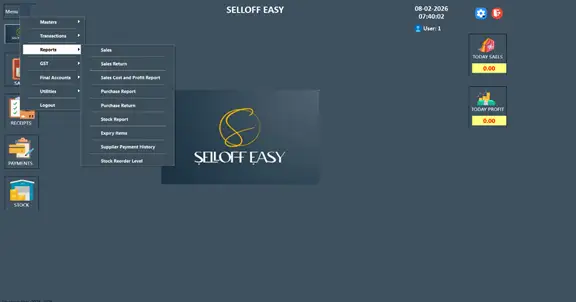
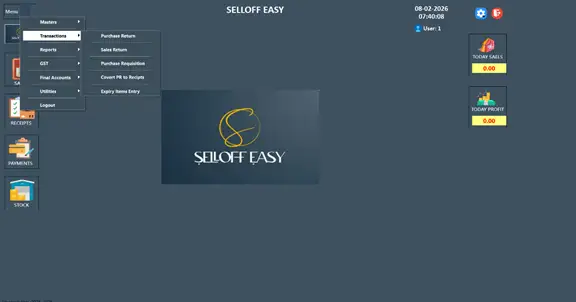
Main Menu Dashboard

  • This screen displays the dashboard with the main menu expanded.
  • It provides access to modules such as Masters, Transactions, Reports, GST, Final Accounts, Utilities, and Logout.
  • The screen also displays user information, daily sales, and profit.

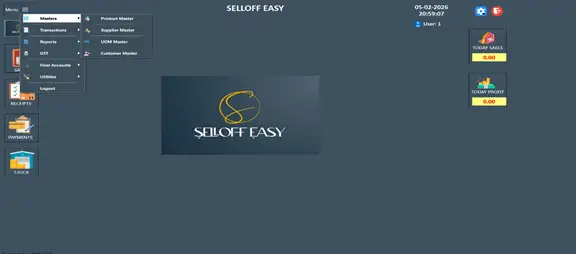
Masters Menu

  • The Masters module is used to manage important business data required for daily operations.
  • It includes Product Master, Supplier Master, UOM Master, and Customer Master.

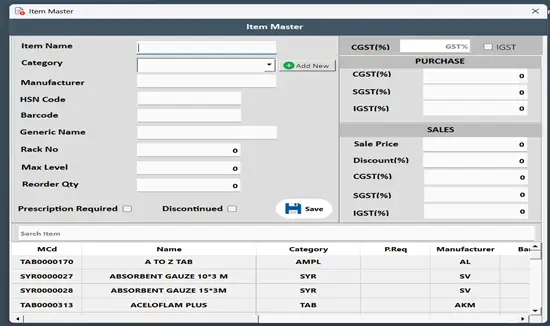
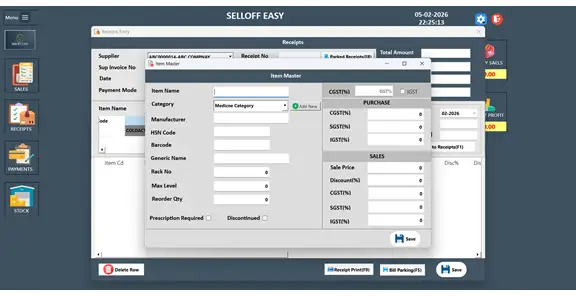
Item Master

  • This screen allows users to create and manage product details.
  • Users can enter item name, category, manufacturer, HSN code, barcode, pricing details, GST configuration, and stock levels.
  • The system also maintains reorder quantities for inventory management.

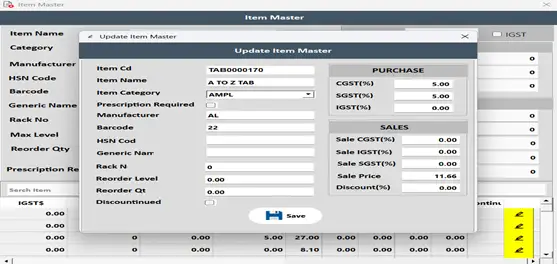
Update Item Master Screen:

This screen allows users to update existing item details in the Selloff Easy application. Items details can modify item information such as item name, category, manufacturer, barcode, GST rates, sale price, discount, and reorder levels, and then save the changes.

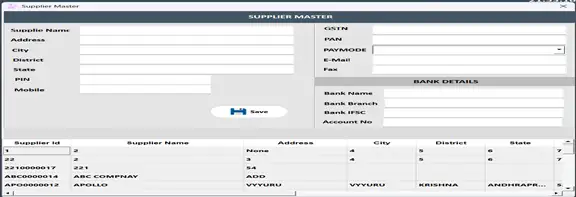
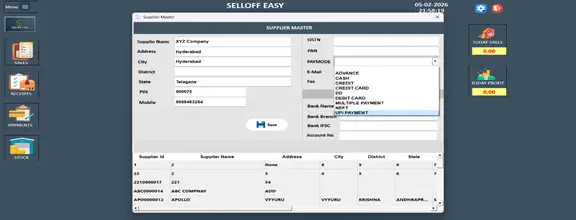
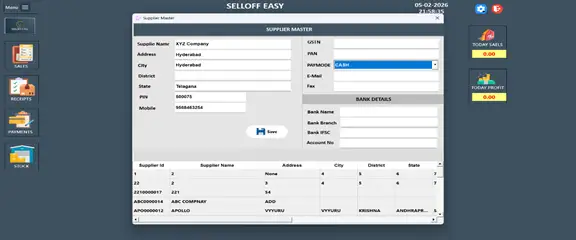
Supplier Master

  • This screen stores supplier information such as name, address, mobile number, GSTN, and PAN.
  • It also allows storing bank details including bank name, branch, IFSC code, and account number.

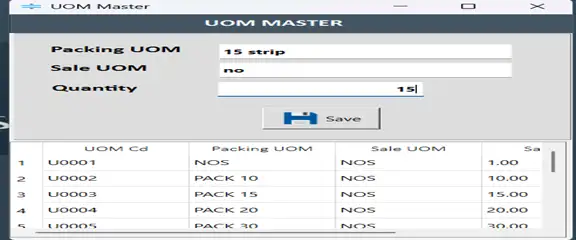
UOM Master: The Screen is used to define and manage Units of Measurement.

It allows users to enter Packing UOM, Sale UOM, and the corresponding Quantity. The Save button stores the UOM details, and the table below displays all saved UOM records with UOM code, packing unit, sale unit, and quantity for easy reference and selection.


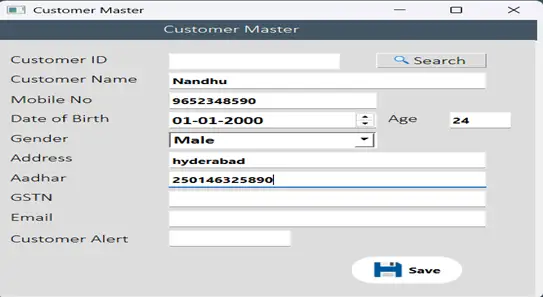
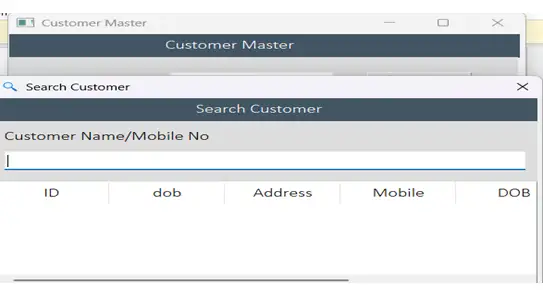
Customer Master

  • This screen stores customer details such as name, mobile number, GSTN & address.
  • It allows quick search and selection of customers during sales transactions.

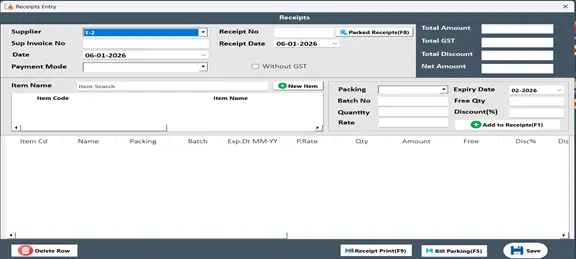
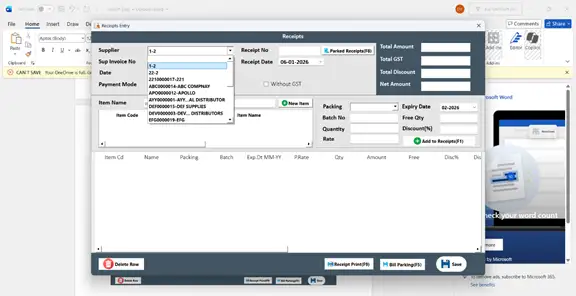
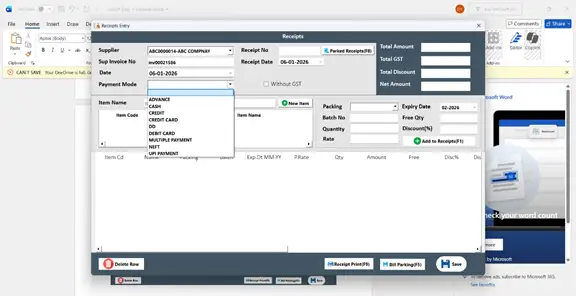
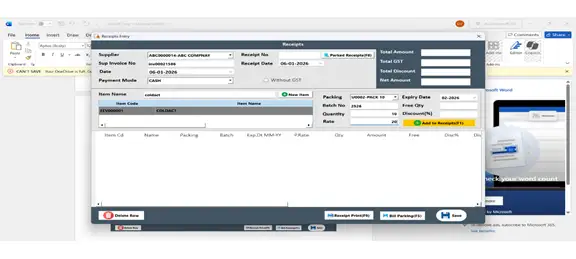
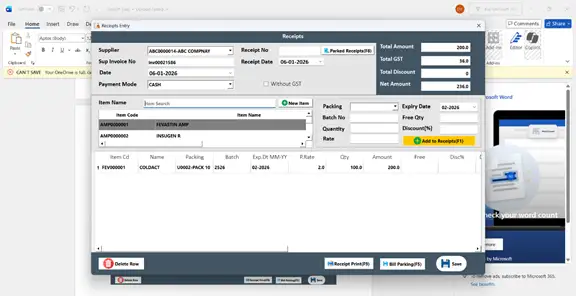
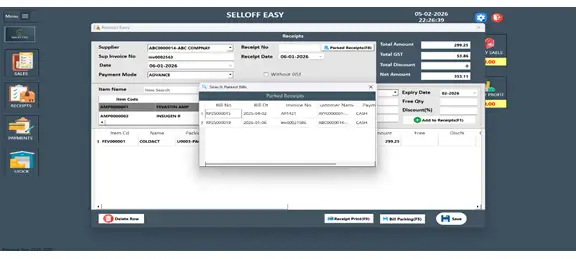
Receipts Entry

  • This module records purchase receipts from suppliers.
  • Users can enter invoice details such as batch no’s, expiry date, quantity, rate, discounts.
  • The system automatically calculates GST, total amount, and net payable amount.
  • Options such as Add to Receipts, Delete Row, Parked Receipts, Bill Parking, Receipt Print, and Save help users manage and complete receipt transactions efficiently.

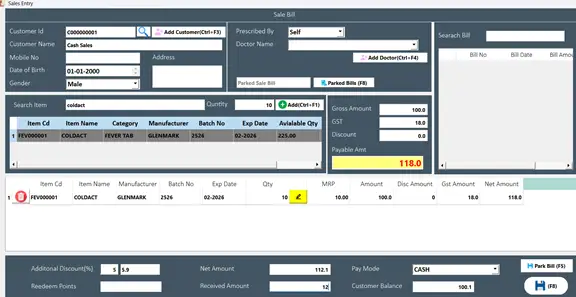
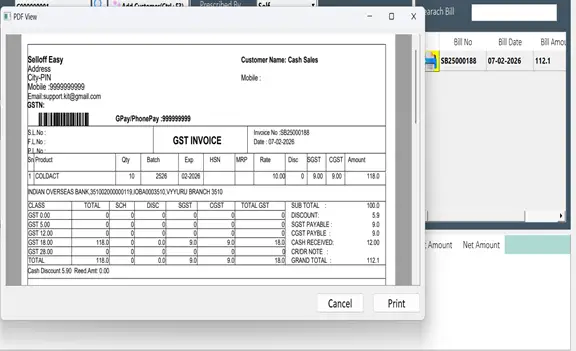
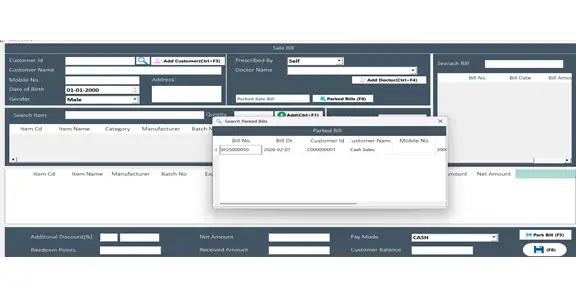
Sales Entry

  • This screen is used to record product sales to customers.
  • It displays stock availability, batch number, expiry date, and MRP.
  • The system automatically calculates GST, discounts, and final payable amount.
  • Options such as Park Bill, Parked Bills, and Save help manage and complete sales transactions efficiently.

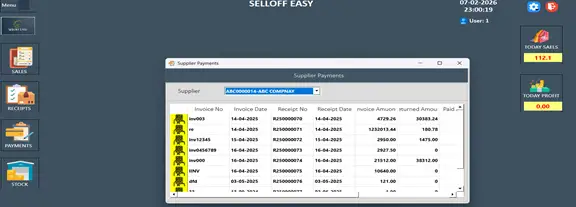
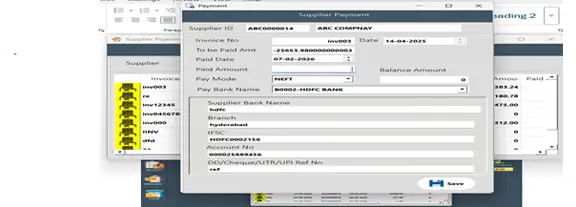
Supplier Payments

  • This module tracks payments made to suppliers against invoices.
  • It helps monitor outstanding balances and maintain proper payment records.

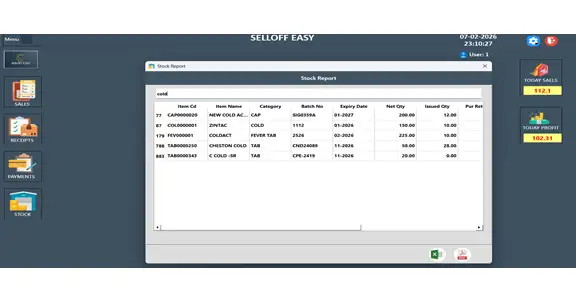
Stock Report

  • The Stock Report displays available inventory with item name, category, batch number, expiry date, and quantity.
  • Users can export reports to Excel or PDF.

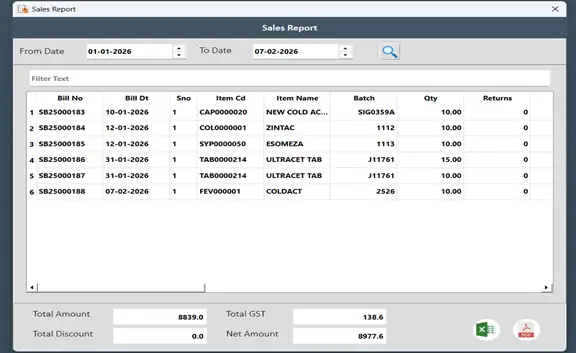
Sales Report

  • This report displays sales transactions within a selected date range. It includes bill number, bill date, item name, quantity sold, and total amount.

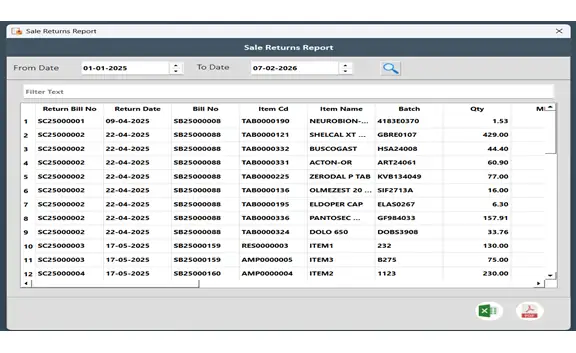
Sale Return

  • This screen processes customer returns. sUsers can select the original bill and calculate the refund amount.
  • Sale Return: Screenshot refers to Sales Return details which can download in PDF/Excel

Sales Cost and Profit Report:

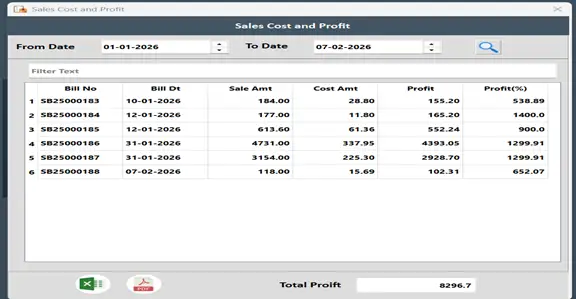
The report for a selected date range. It lists each bill with the bill number, bill date, sale amount, cost amount, calculated profit, and profit percentage. Users can filter records by date or text and export the data to Excel or PDF. At the bottom, the total profit for the selected period is displayed

Purchase Report

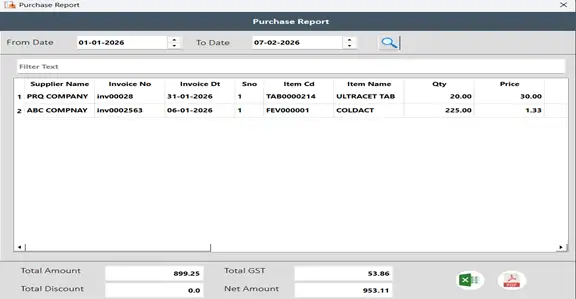
  • This report displays supplier‑wise purchase transactions including invoice number, item details, and quantities.

Purchase Return

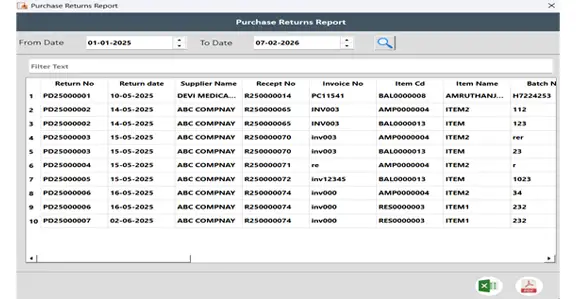
  • This screen allows users to return purchased items to suppliers.
  • The system automatically calculates the return value including applicable GST.

Expiry Stock Report

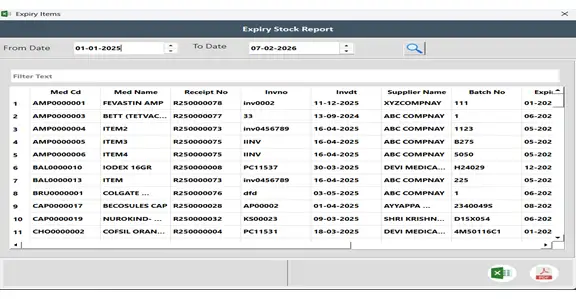
  • This report identifies items that are expired or nearing expiry.
  • It helps businesses manage inventory and reduce losses.

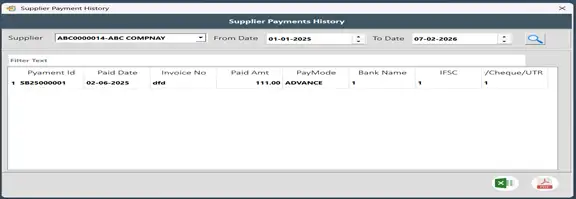
Supplier Payment History: User can view the Payment details made to the suppliers by selecting a specific date range as shown in below screenshot.

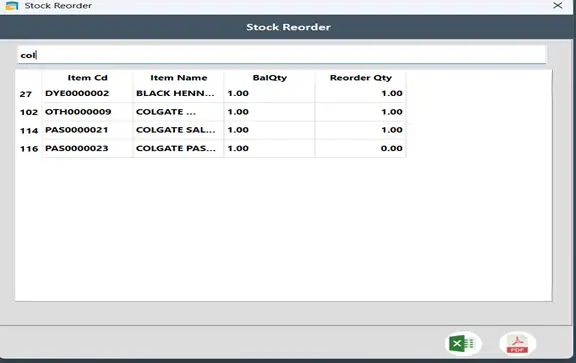
Stock Reorder:

The screen identifies items that needed to be re-ordered based on their current stock level.

Transactions Explore:

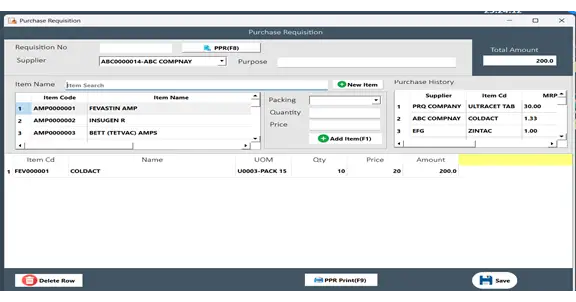
Purchase Requisition

  • This module allows users to create purchase requests for items that need replenishment.

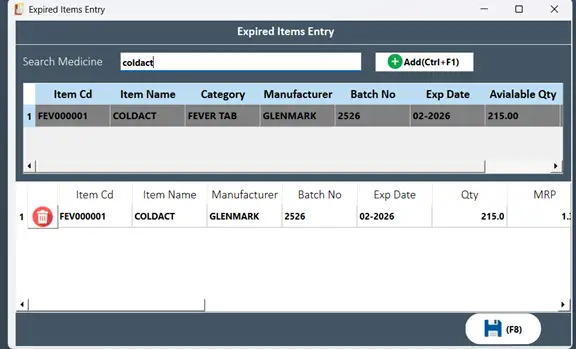
Expired Items Entry:

This module records expired items in the Inventory and adjusts stock levels accordingly.

For example:  the product COLDACT (item code: FEV000001) may go through different stages such as sales return, purchase requisition, and stock receipt before being identified as expired. The system helps track such items and remove them from available stock when they reach their expiry date this helps the organization to plan timely purchases and maintain adequate inventory levels

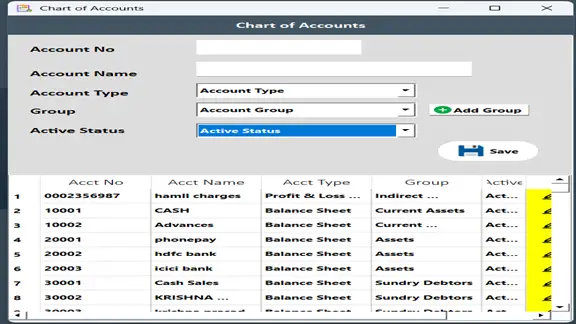
Chart of Accounts

  • This module manages financial account categories such as cash, banks, and debtors.

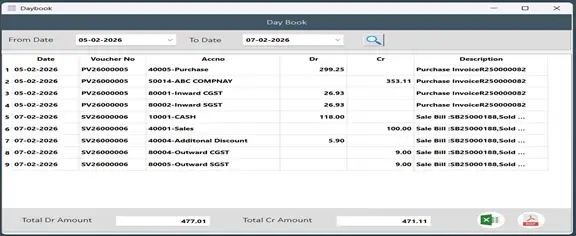
Day Book

  • The Day Book records daily financial transactions including sales, purchases, payments, and receipts.

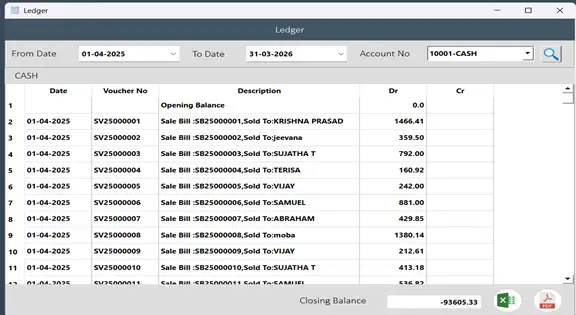
Ledger

  • The Ledger report provides account‑wise transaction history including opening balance, transactions, and closing balance.

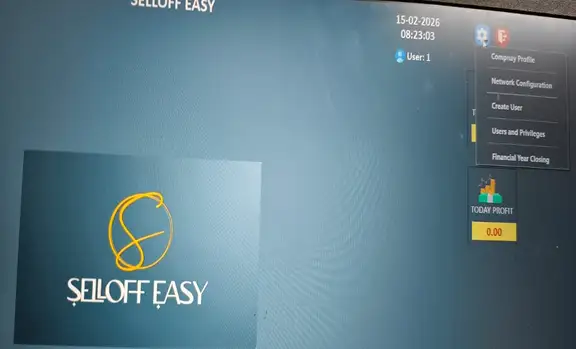
Settings

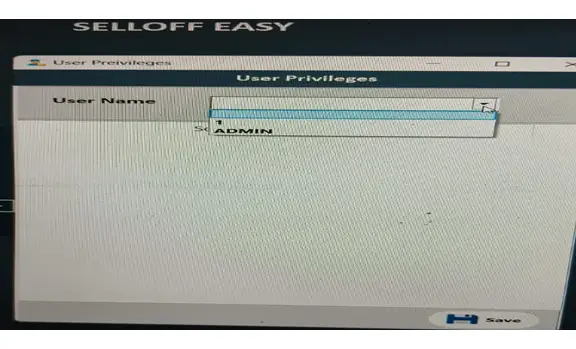
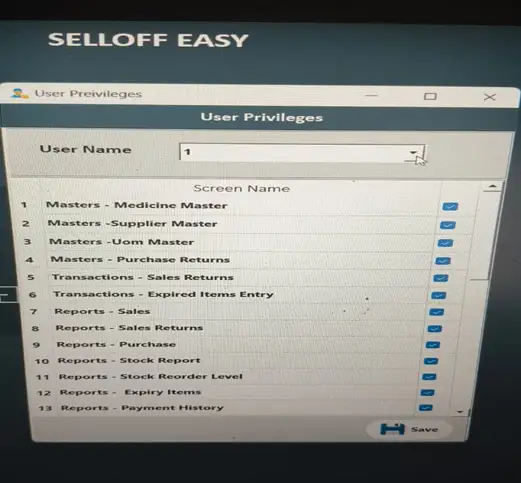
  • The Settings menu allows administrators to manage company profile, network configuration, user accounts, privileges, and financial year closing.

Selloff Easy integrates inventory management, billing, reporting, and accounting into a single platform, helping businesses improve operational efficiency and financial control

Call to ask any question: +91 76758 79089

Archives

No archives to show.

Categories

  • No categories